Would it be a good idea to run Kubernetes on UnRAID?

Kubernetes on Arch Linux in Unraid VMs

Great guide here

Questions:
Would it be a good idea to run Kubernetes on UNRAID?
Also is there a plan to incorporate Kubernetes in UNRAID 7?

Answers:
Running Kubernetes on UNRAID can be done, but there are several factors to consider before deciding whether it’s a good idea for your specific use case.

Advantages of Running Kubernetes on UNRAID:

Challenges:

  1. Complexity: Kubernetes introduces additional complexity compared to using Docker on UNRAID. This might be overkill for home lab environments or smaller setups.
    1. Integration Limitations: UNRAID is primarily designed as a NAS and media server OS, not as a Kubernetes host. Some custom setups (e.g., virtual machines) might be required to run Kubernetes clusters effectively.
    2. Resource Overhead: Kubernetes has a higher overhead compared to running standalone Docker containers. Ensure your UNRAID server has enough resources.
    3. Support: Kubernetes isn’t officially supported by UNRAID, so any issues would require community support or self-troubleshooting.

    Alternative Approaches:

    • K3s: A lightweight Kubernetes distribution that might be more suitable for UNRAID’s typical workloads.
    • Docker Compose: For simpler container orchestration needs, Docker Compose might be sufficient and integrates well with UNRAID.

    Plans for Kubernetes in UNRAID 7

    As of now, UNRAID has not officially announced plans to integrate Kubernetes natively into a future release like UNRAID 7. The focus of UNRAID development tends to revolve around improving storage, virtualization, Docker support, and user experience for NAS and home server applications. If Kubernetes integration becomes a high-demand feature within the UNRAID community, it might influence their roadmap.

    For the latest updates, it’s worth checking:

    • UNRAID forums
    • Release notes for UNRAID 7 (when available)

    If you’re considering Kubernetes on UNRAID, ensure your server hardware can handle it and weigh the complexity against your actual needs.


    Using GITLab with WordPress

    How to Use GITLab to Manage Your WordPress Site

    Full Disclosure >> This post was created by an AI (with some prompting from me). I haven’t yet evaluated it….

    GITLab is a powerful version control system that can be used to manage your WordPress site. It allows you to track changes to your site, collaborate with other developers, and deploy your site with ease. In this article, we will discuss how to use GITLab to manage your WordPress site.

    First, you will need to create a GITLab account. Once you have created an account, you can create a repository for your WordPress site. This repository will store all of the files associated with your WordPress site.

    Next, you will need to install the GITLab plugin on your WordPress site. This plugin will allow you to connect your WordPress site to your GITLab repository. Once the plugin is installed, you can start tracking changes to your WordPress site.

    Once you have connected your WordPress site to your GITLab repository, you can start making changes to your site. Whenever you make a change, you can commit it to your GITLab repository. This will allow you to track changes to your site and collaborate with other developers.

    Finally, you can use GITLab to deploy your WordPress site. You can set up a continuous integration system that will automatically deploy your site whenever you commit changes to your GITLab repository. This will allow you to quickly and easily deploy your site without having to manually upload files.

    In conclusion, GITLab is a powerful version control system that can be used to manage your WordPress site. It allows you to track changes to your site, collaborate with other developers, and deploy your site with ease. By following the steps outlined in this article, you can easily use GITLab to manage your WordPress site.

    Benefits of Using GITLab for WordPress Development

    GitLab is a powerful and popular version control system that is used by many developers for WordPress development. It is a great tool for managing and tracking changes in code, and it can be used to collaborate with other developers on projects. Here are some of the benefits of using GitLab for WordPress development:

    1. Easy Collaboration: GitLab makes it easy for developers to collaborate on projects. It allows developers to work together on the same codebase, and it also allows them to review each other’s changes before they are committed to the repository. This makes it easier to ensure that the code is of high quality and that all changes are properly documented.

    2. Version Control: GitLab allows developers to keep track of changes in their codebase. It allows them to easily revert back to previous versions of the code if needed, and it also allows them to easily compare different versions of the code. This makes it easier to identify and fix bugs, and it also makes it easier to keep track of changes over time.

    3. Security: GitLab provides a secure environment for developers to work in. It allows developers to securely store their code in the cloud, and it also provides access control so that only authorized users can access the code. This makes it easier to protect sensitive data and ensure that only authorized users can access the code.

    4. Automation: GitLab provides a number of automation tools that make it easier for developers to manage their code. It allows developers to set up automated tests and builds, and it also allows them to automate the deployment of their code. This makes it easier to ensure that the code is always up-to-date and that it is always running correctly.

    Overall, GitLab is a great tool for WordPress development. It provides a secure environment for developers to work in, and it also makes it easier to collaborate and track changes in code. It also provides a number of automation tools that make it easier to manage and deploy code. All of these features make it an ideal tool for WordPress development.

    Tips for Setting Up GITLab for WordPress Projects

    1. Create a Repository: Before you can start using GITLab for your WordPress project, you need to create a repository. This is where all of your project files will be stored. To do this, log into your GITLab account and click on the “Create a Repository” button. Give your repository a name and description, then click “Create”.

    2. Add Your WordPress Files: Once your repository is created, you can start adding your WordPress files. You can do this by either uploading them directly to the repository or by using a version control system such as GIT. If you choose to use GIT, you will need to install it on your computer and then clone the repository to your local machine.

    3. Set Up Your Branches: GITLab allows you to create multiple branches for your project. This is useful for keeping track of different versions of your project. To create a branch, click on the “Branches” tab in your repository and then click “Create Branch”. Give your branch a name and then click “Create”.

    4. Create a Deployment Pipeline: GITLab also allows you to set up a deployment pipeline for your project. This is a series of steps that will be executed when you push changes to your repository. To set up a deployment pipeline, click on the “Pipelines” tab in your repository and then click “Create Pipeline”. Give your pipeline a name and then click “Create”.

    5. Set Up Your Environment Variables: GITLab also allows you to set up environment variables for your project. These are variables that can be used to store sensitive information such as passwords or API keys. To set up environment variables, click on the “Settings” tab in your repository and then click “Environment Variables”. Give your variable a name and then click “Create”.

    6. Set Up Your Webhooks: GITLab also allows you to set up webhooks for your project. These are URLs that will be triggered when certain events occur in your repository. To set up webhooks, click on the “Settings” tab in your repository and then click “Webhooks”. Give your webhook a name and then click “Create”.

    7. Set Up Your CI/CD Pipeline: GITLab also allows you to set up a CI/CD pipeline for your project. This is a series of steps that will be executed when you push changes to your repository. To set up a CI/CD pipeline, click on the “Settings” tab in your repository and then click “CI/CD”. Give your pipeline a name and then click “Create”.

    By following these steps, you can easily set up GITLab for your WordPress project. GITLab is a powerful tool that can help you manage your project more efficiently and effectively.


    Adventures in Git (AIG) Part 2

    Ok, it’s been a while, but I’m getting back into this!

    I have a self-hosted instance of GitLab and now I am going to create repo’s for my live and staging sites of comics.blandford.tk.  My goal is to be able to work locally, have it go up to GitLab, automatically push those changes to ‘staging’ so that I may be able to test that they are working correctly, and finally put those changes ‘live’.

    There are a couple of things to sort out first.

    1.  get the live pages ‘cloned’ to staging
    2.  get staging ‘cloned’ to GitLab
    3.   pull the GitLab copy down to a new project in Nova locally

    Seems easy enough….
    Here are some references I’ll be utilizing to work through this;

    More to come….

    Adventures in Git

    Ok, I’m not the person that uses Git all the time, there I’ve said it. I cheat and direct edit files (a lot)!

    But I’m trying to be better…..

    To that end I’m writing this post(s) to chronicle my journey from sometimes git user to a fully committed (pun intended) user.

    Here’s the plan;

    • set up git on a webserver
    • install GitLab on another server in a Docker container
    • use Nova (Panic’s great editor) on my local machine

    The plan is to push changes from local to GL then have those push mirror to the webserver. Sounds simple right?

    In this way I’ll have a working GitLab instance acting as the hub of any development I do…..


    How to add country blocking to unraid using the Nginx Proxy Manager

    After looking into this I have decided that the amount of effort would not be worth it. Instead I’ve implemented a firewall rule at Cloudflare which challenges any traffic that does not come from the US or Canada. This will stem the tide of bot traffic without blocking legitimate traffic.

    Down the line I’ll set up country blocking in opnSense…..


    SSL Failures Behind NPM

    The title says it all. Occasionally when working on sites I host behind NPM (Nginx Proxy Manager) from the LAN I will have a failure owing to the fact that the SSL cert on the local server is: missing, expired, etc… Running certbot to create certs can be preoblematic behind NPM and would create a different cert than the proxy is serving up, so…. I got the idea to create a cron job on the web server that would;

    1) ssh into unraid
    2) rsync the SSL files down to the appropriate webserver instance
    3) reload nginx

    This will keep the certs in sync and eliminate the pesky SSL issues I was seeing on when accessing sites from behind NPM


    WordPress REST API Misbehavior on Nginx

    Working on this site with the new WP v5.8.2 I was hitting an error when using block editor.

    I installed the ‘Classic Editor’ plugin so that I could keep working…

    The data in the error looked like this…

    Nc@https://www.blandford.tech/wp-includes/js/dist/vendor/react-dom.min.js?ver=16.13.1:72:66

    @https://www.blandford.tech/wp-includes/js/dist/vendor/react-dom.min.js?ver=16.13.1:81:435

    T@https://www.blandford.tech/wp-includes/js/dist/vendor/react-dom.min.js?ver=16.13.1:95:474

    zj@https://www.blandford.tech/wp-includes/js/dist/vendor/react-dom.min.js?ver=16.13.1:230:157

    Th@https://www.blandford.tech/wp-includes/js/dist/vendor/react-dom.min.js?ver=16.13.1:152:225

    tj@https://www.blandford.tech/wp-includes/js/dist/vendor/react-dom.min.js?ver=16.13.1:152:154

    Te@https://www.blandford.tech/wp-includes/js/dist/vendor/react-dom.min.js?ver=16.13.1:146:153

    Te@[native code]

    @https://www.blandford.tech/wp-includes/js/dist/vendor/react-dom.min.js?ver=16.13.1:61:69

    unstable_runWithPriority@https://www.blandford.tech/wp-includes/js/dist/vendor/react.min.js?ver=16.13.1:25:261

    Pg@https://www.blandford.tech/wp-includes/js/dist/vendor/react-dom.min.js?ver=16.13.1:61:16

    ha@https://www.blandford.tech/wp-includes/js/dist/vendor/react-dom.min.js?ver=16.13.1:60:453

    Ja@https://www.blandford.tech/wp-includes/js/dist/vendor/react-dom.min.js?ver=16.13.1:224:402

    ch@https://www.blandford.tech/wp-includes/js/dist/vendor/react-dom.min.js?ver=16.13.1:93:81

    ch@[native code]

    e@https://www.blandford.tech/wp-includes/js/dist/data.min.js?ver=a9e98fe3ad76884fe7909ba8348395b7:2:20892

    t@https://www.blandford.tech/wp-includes/js/dist/data.min.js?ver=a9e98fe3ad76884fe7909ba8348395b7:2:20959

    @https://www.blandford.tech/wp-includes/js/dist/data.min.js?ver=a9e98fe3ad76884fe7909ba8348395b7:2:15083

    b@https://www.blandford.tech/wp-includes/js/dist/data.min.js?ver=a9e98fe3ad76884fe7909ba8348395b7:2:8589

    @https://www.blandford.tech/wp-includes/js/dist/redux-routine.min.js?ver=fd5f93d1f8206c65d1891cf1f898211e:2:1354

    some@[native code]

    r@https://www.blandford.tech/wp-includes/js/dist/redux-routine.min.js?ver=fd5f93d1f8206c65d1891cf1f898211e:2:9237

    @https://www.blandford.tech/wp-includes/js/dist/redux-routine.min.js?ver=fd5f93d1f8206c65d1891cf1f898211e:2:9187

    promiseReactionJob@[native code]

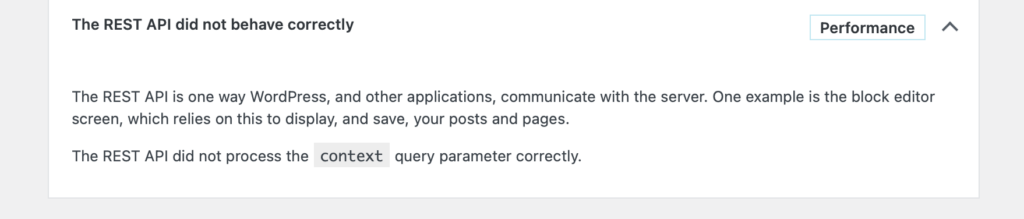
    Site Health (plugin) was giving me this…

    Solution

    I was able to get everything working by making sure that my Nginx site config contained the following:

    location / {
    try_files $uri $uri/ /index.php?$args;
    }

    You have to include the "?$args" part so non-default permalinks doesn't break when using query string

    Lastly don’t forget to restart Nginx so that the changes are applied.

    I hope this helps someone, since I wasted a couple hours getting to the bottom of this. 🙂